

table of contents

You need a dedicated app to customize your home screen in style! This is the definitive version of the dress-up app that has all the dress-up materials!
One of the most basic smartphone operations is how to return to the home screen. Whether you're in an app or browsing a website, there are plenty of times when you need to get back to the home screen quickly. In this guide, I'll explain how to do it for both iPhone and Android devices!
For models without a home button, you need to use gestures to access the home screen.
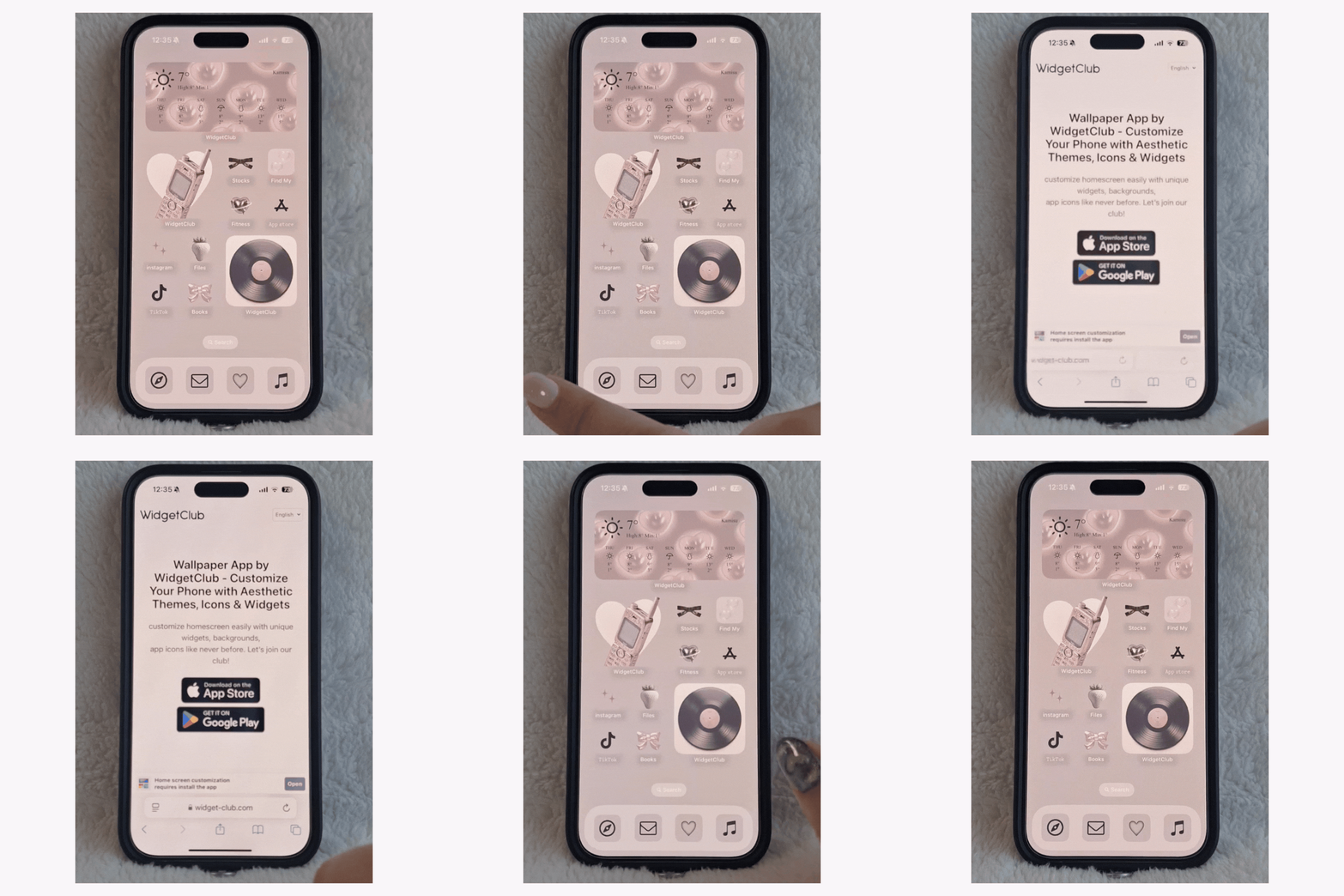

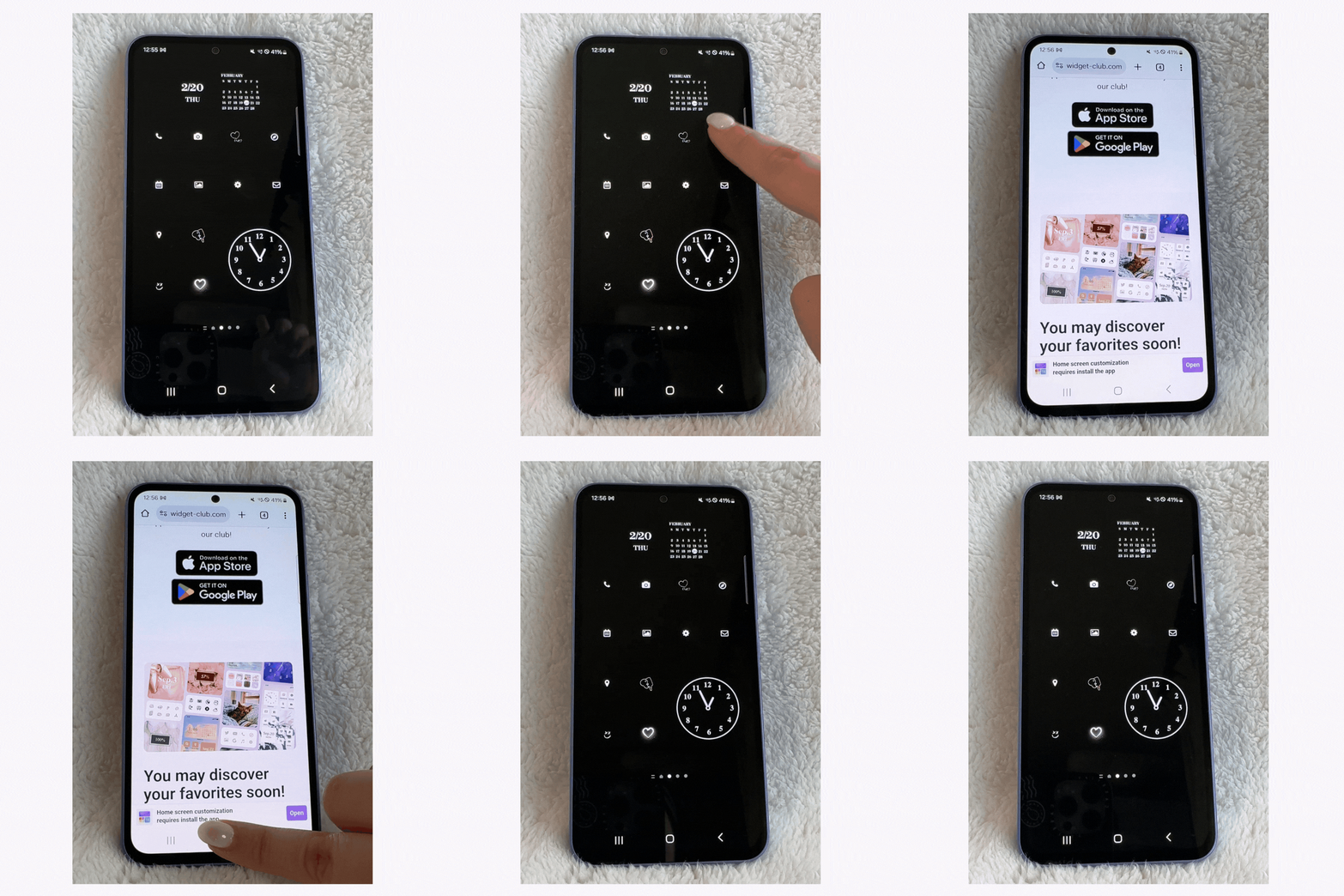

If your device is frozen, it may not respond to gestures or button presses. Try restarting your device.


Depending on your device and OS version, "Restart" may not appear immediately. If you don't see it, first select "Power Off," and then you'll have the option to restart.

Today, I explained how to return to the home screen! If you're switching from a device with a home button to one without, it might take some getting used to. Since this is a fundamental smartphone operation, be sure to remember it!
With WidgetClub, you can customize not only your icons but also your widgets to create a more stylish and functional home screen. 💞 Check it out below!

Have you ever used an AI-powered keyboard? 👀 Whether it's casual messages or business emails, LeapMe lets you reply instantly just by entering what you want to say. 📝 It's so convenient, you'll never want to go back! Plus, it supports translations. 🌏

Eri
Freelance web writer. Apple enthusiast who regularly uses iPhone, iPad, AirPods, Apple Watch, and MacBook Air. Actively sharing useful information on smart ways to use smartphones and app recommendations by actually trying out various apps!
Liume inc.
Representative Director & CEO Saeko Usami
After graduating from the Faculty of Economics at Keio University, I worked as an editor in the news media division of an internet portal company and, from the early days of mobile apps, engaged in product development and marketing for iPhone and Android applications. I founded Liume Inc. in June 2021 and released an app in September 2021 that lets users stylishly customize their smartphone home and lock screens with widgets, wallpapers, and icons. Our iPhone and Android apps have surpassed 9 million total downloads. I have been an iPhone user for over 15 years.